Plato Q&A
Getting academic support can sometimes feel like a bit of a hassle, with back-and-forth emails, trying to book office hours, or waiting for help. We understand that both students and staff are juggling a lot, and there’s often limited time and resources to provide the personalised help you might need, especially when course content gets tricky.
The Plato Q&A feature aims to address this by providing instant, personalised academic assistance within your module. Plato can help you better understand course materials, offer immediate feedback, generate practice questions, and create flashcards—all tailored to your specific module rubric. This feature allows for more streamlined support, empowering you to overcome learning hurdles quickly.
To maximize your experience with Plato, it's recommended that you follow the steps outlined below. This will provide a comprehensive understanding of the chatbot's capabilities and ensure you are using it effectively.
How We Use Artificial Intelligence (AI)
Plato uses OpenAI generative AI models to provide personalised academic support by connecting directly with your course materials. When you ask a question, the AI quickly analyses your module content and offers accurate, tailored responses to help you understand complex topics. You can read more about our AI principles on our blog or learn more about generative AI in IBM's explainer here.
Asking a question
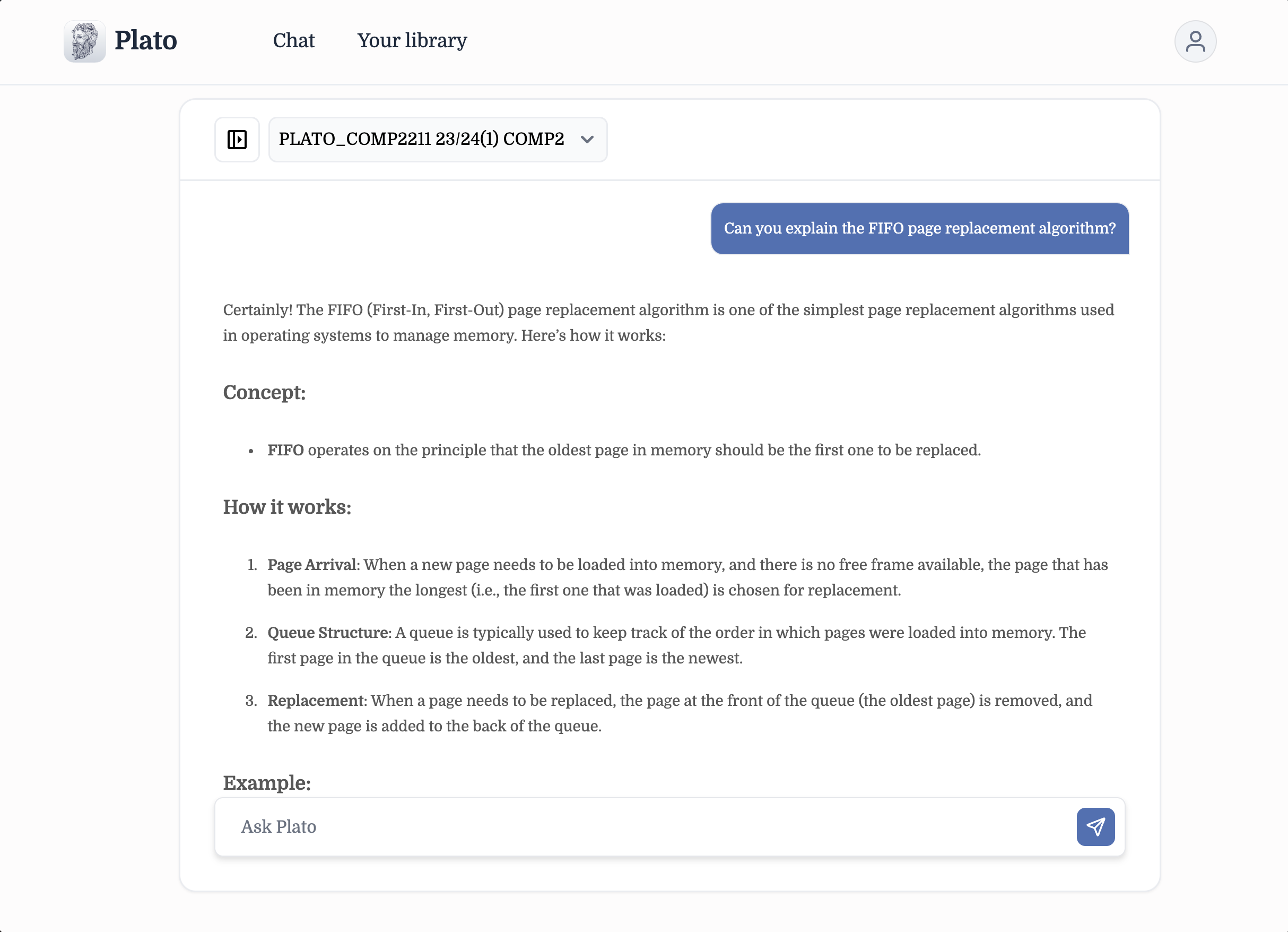
Start with your query
Type your question directly into the chat. For example, you might ask
- “Can you explain the FIFO page replacement algorithm?” or
- “Can you help explain exercise 1 from the week 1 lab?”
Checking the Sources
Source Transparency
Plato pulls information from the teaching materials listed on your Virtial Learning Environment (VLE) such as Blackboard (Minerva) or Canvas. These could invlude documents, PDF, MS Word files and more.
Viewing Sources
After receiving an answer, you can click the "See sources" button to view the referenced materials, allowing you to revisit specific parts of your module for deeper understanding and further study.
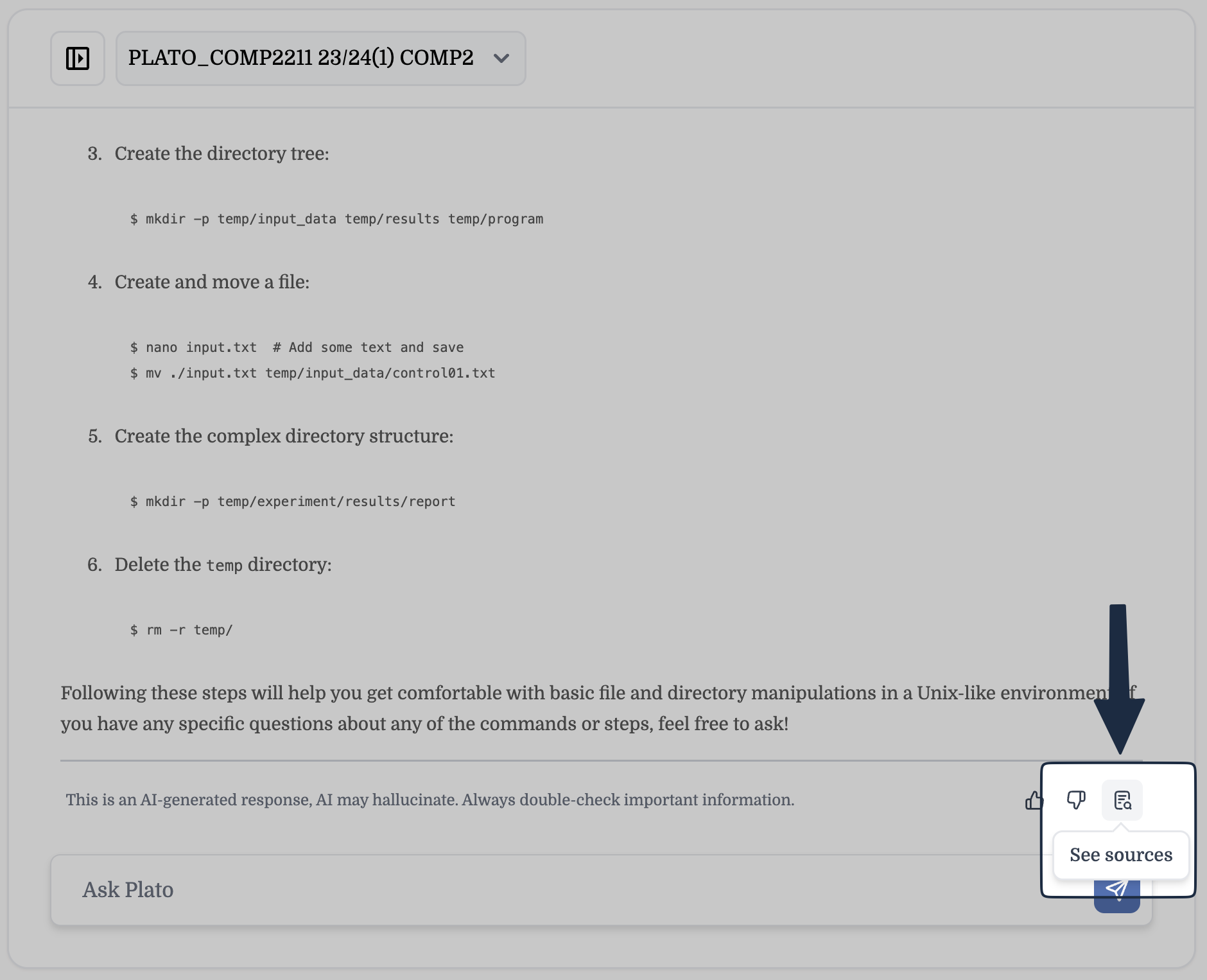
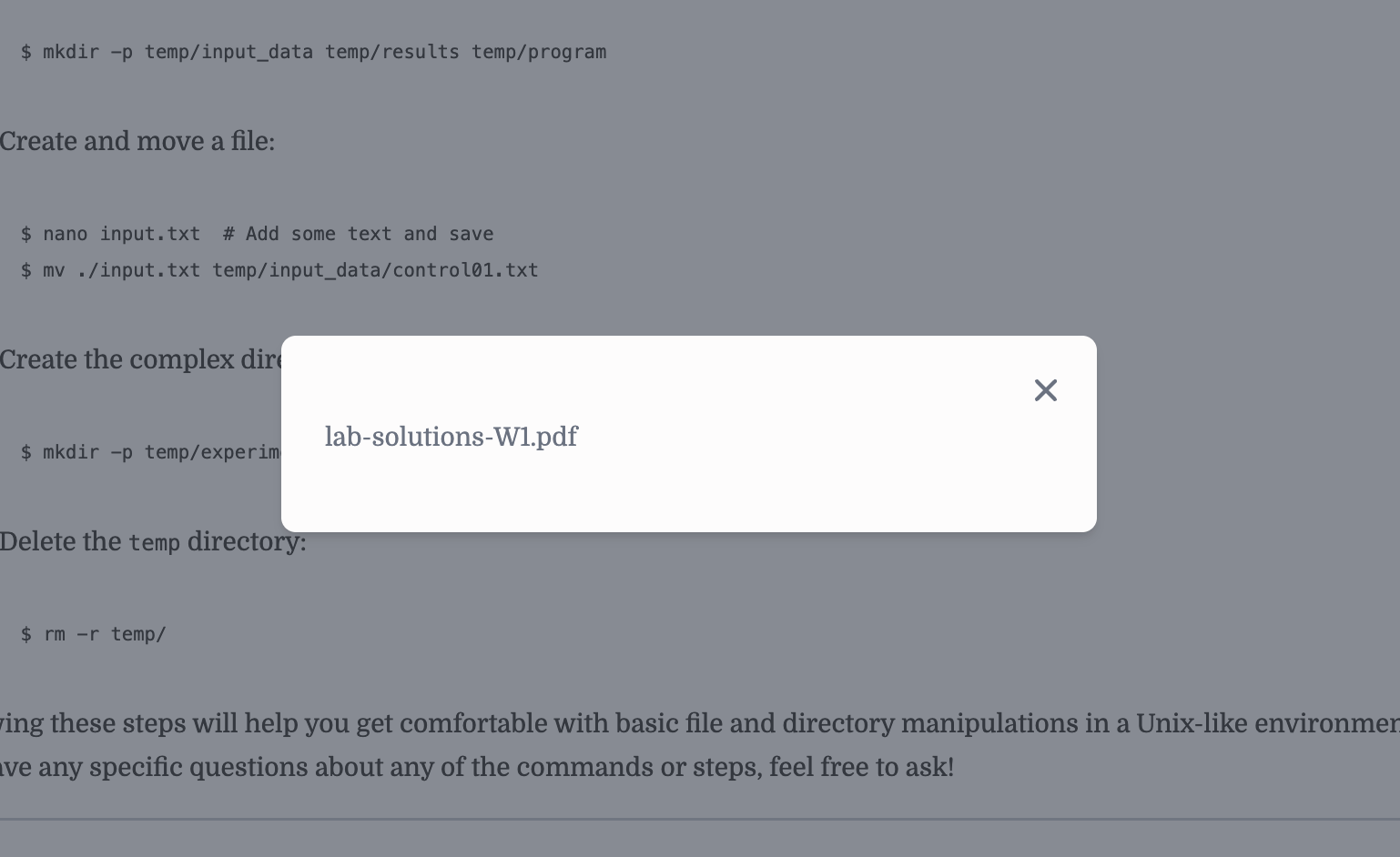
In this case, a student asked Plato "Can you help explain exercise 1 from the week 1 lab?" which prompted Plato to use the lab-solutions-W1.pdf file.
Rating Responses
Response Feedback
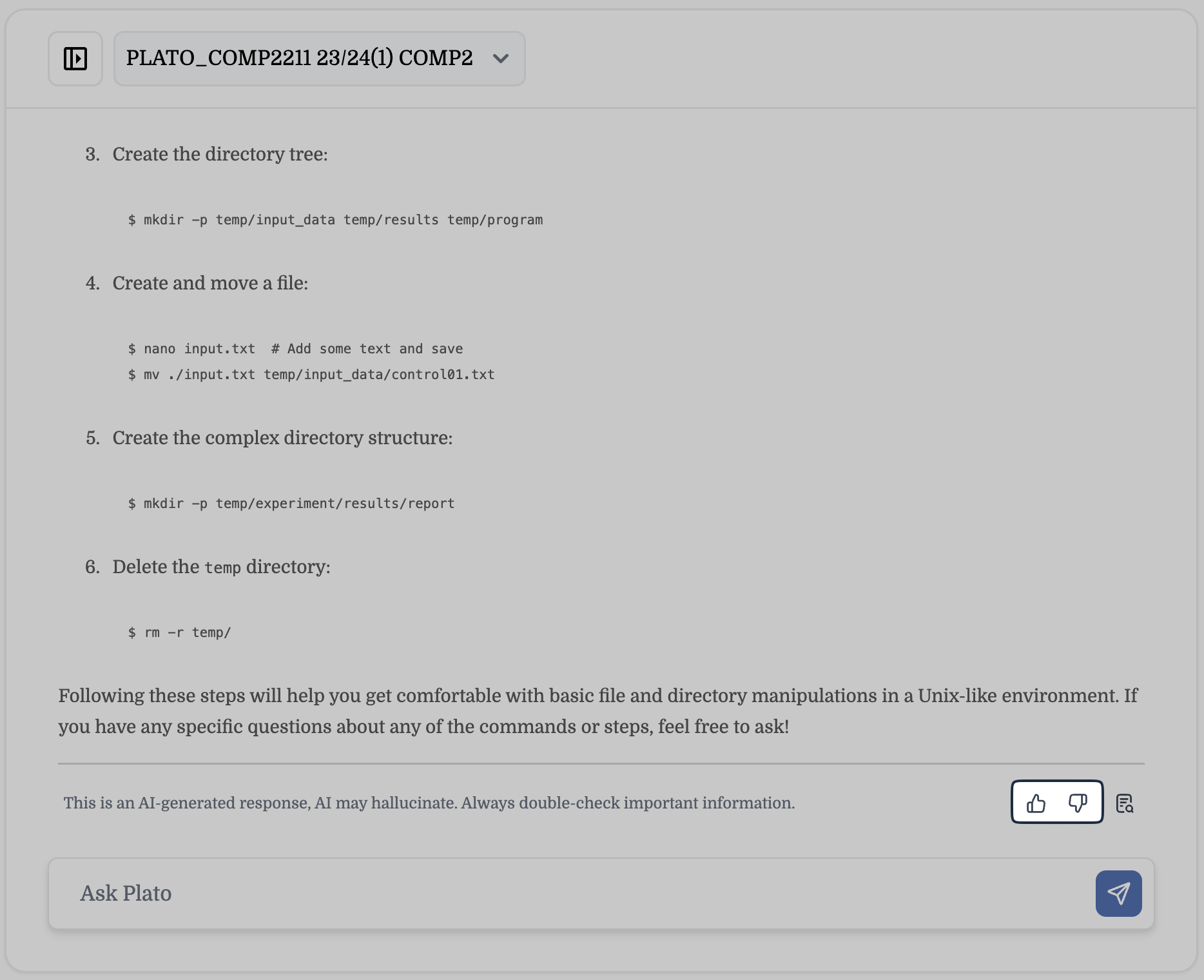
After receiving an answer, you’ll have the option to rate Plato’s response. This feedback helps improve the quality of future interactions. Simply click the thumbs up 👍 if you found the answer helpful or the thumbs down 👎 if you did not.
Module Context
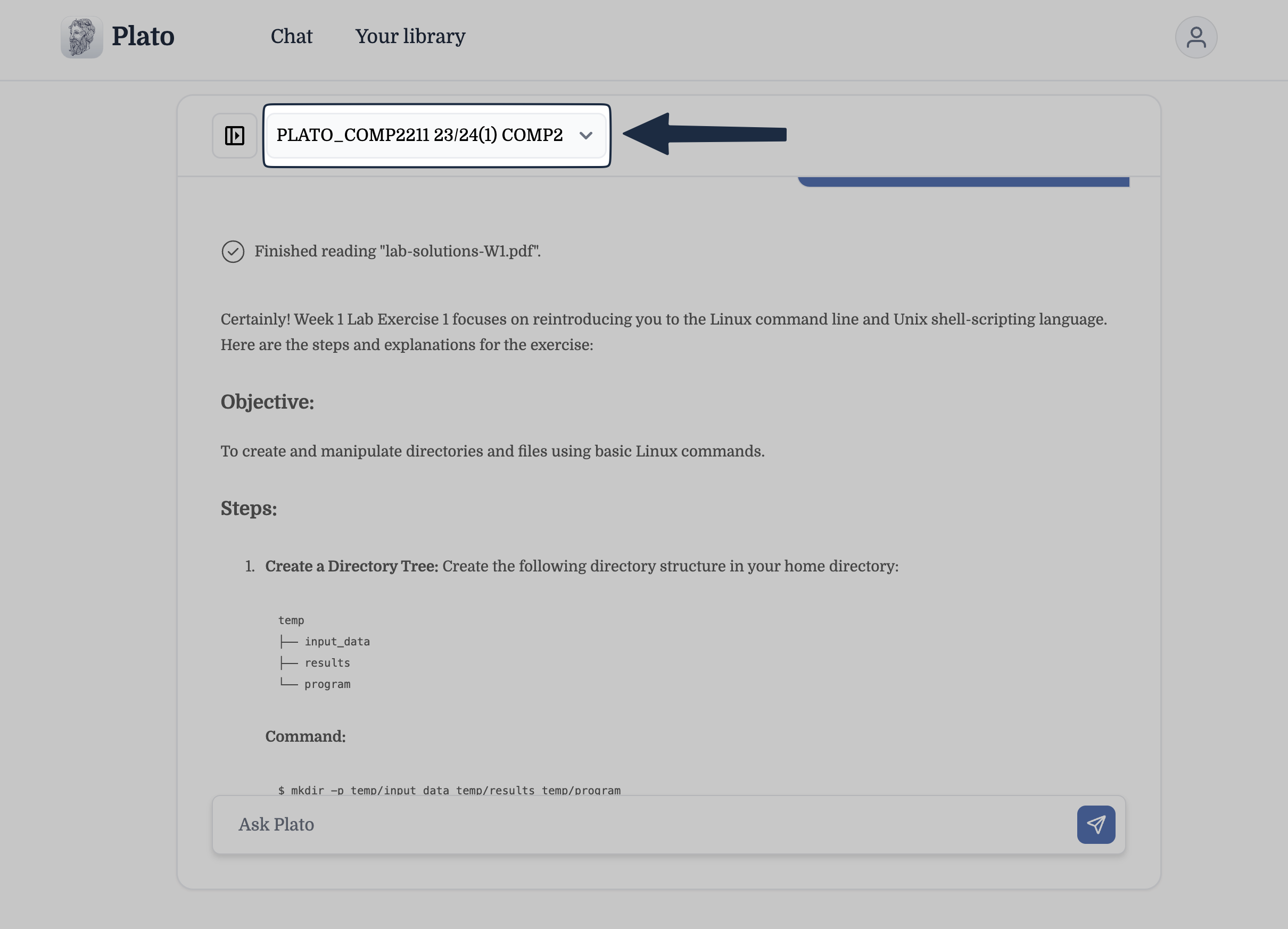
Plato will recognise the module you are working on and provide a response based on the materials in your course. The module you are interacting with or asking questions about can be selected using the module selector.
How to Change
Clicking the module selector will show a list of Plato-enabled modules which you are enrolled in, allowing you to start a new chat and ask questions about that specific module. Plato will adjust its answers based on the new module materials you have selected.
Previous Chats
Accessing Previous Chats
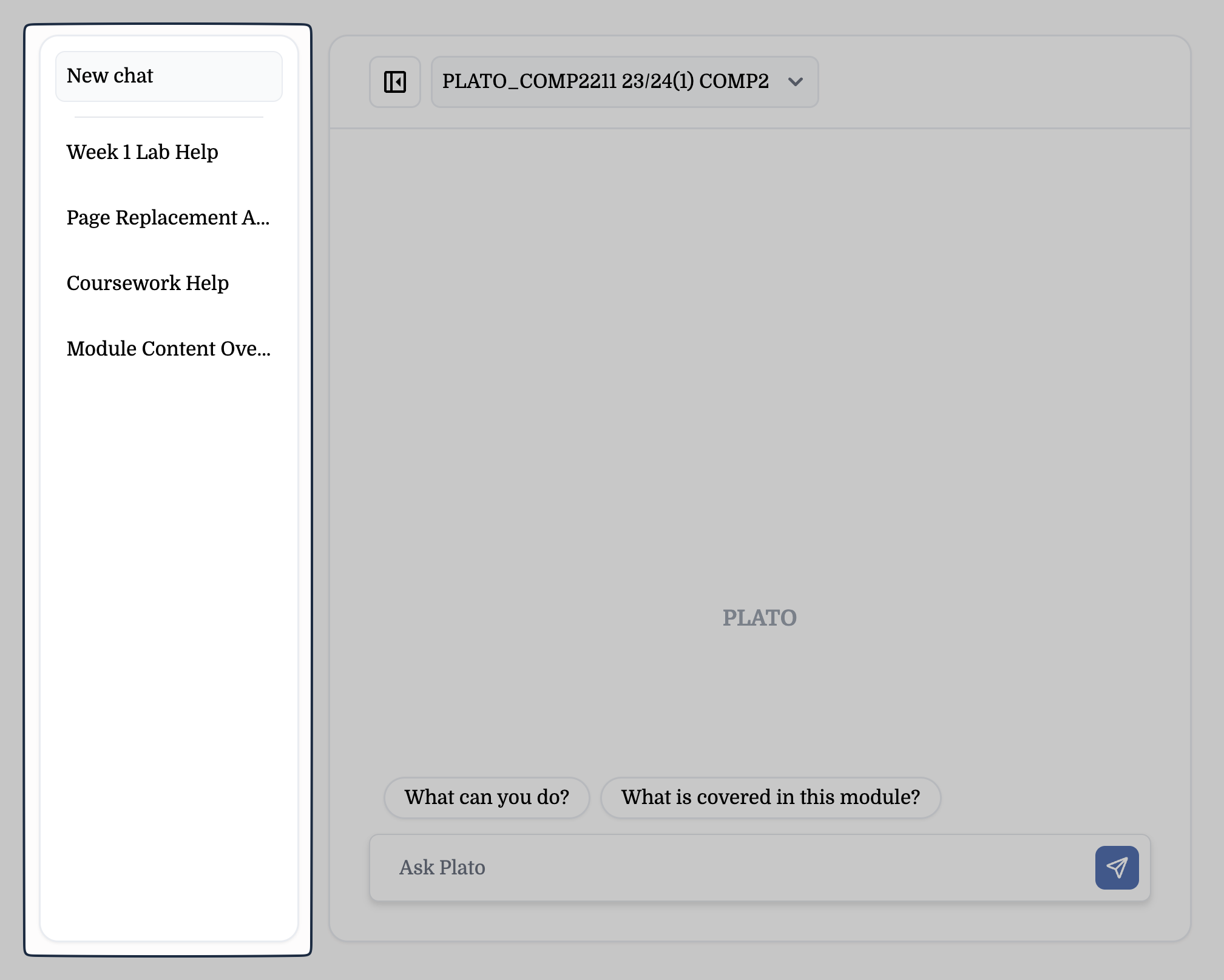
Plato automatically saves your previous chats for future reference. To view previous tasks, go to the "History" section on the left side of the chatbot window to review your previous queries and responses.

Uploading Images or Files
If your question involves diagrams, charts, or other content, you can upload these directly into the chat. Plato supports common file types, such as PDFs, Word documents, and images (JPEG, PNG), are supported for upload.
How to Upload
Click and drag the file you want to attach to your next message into the chat window. Once this is done you will be able to type your question and send your message. Plato will have access to the file you uploaded.
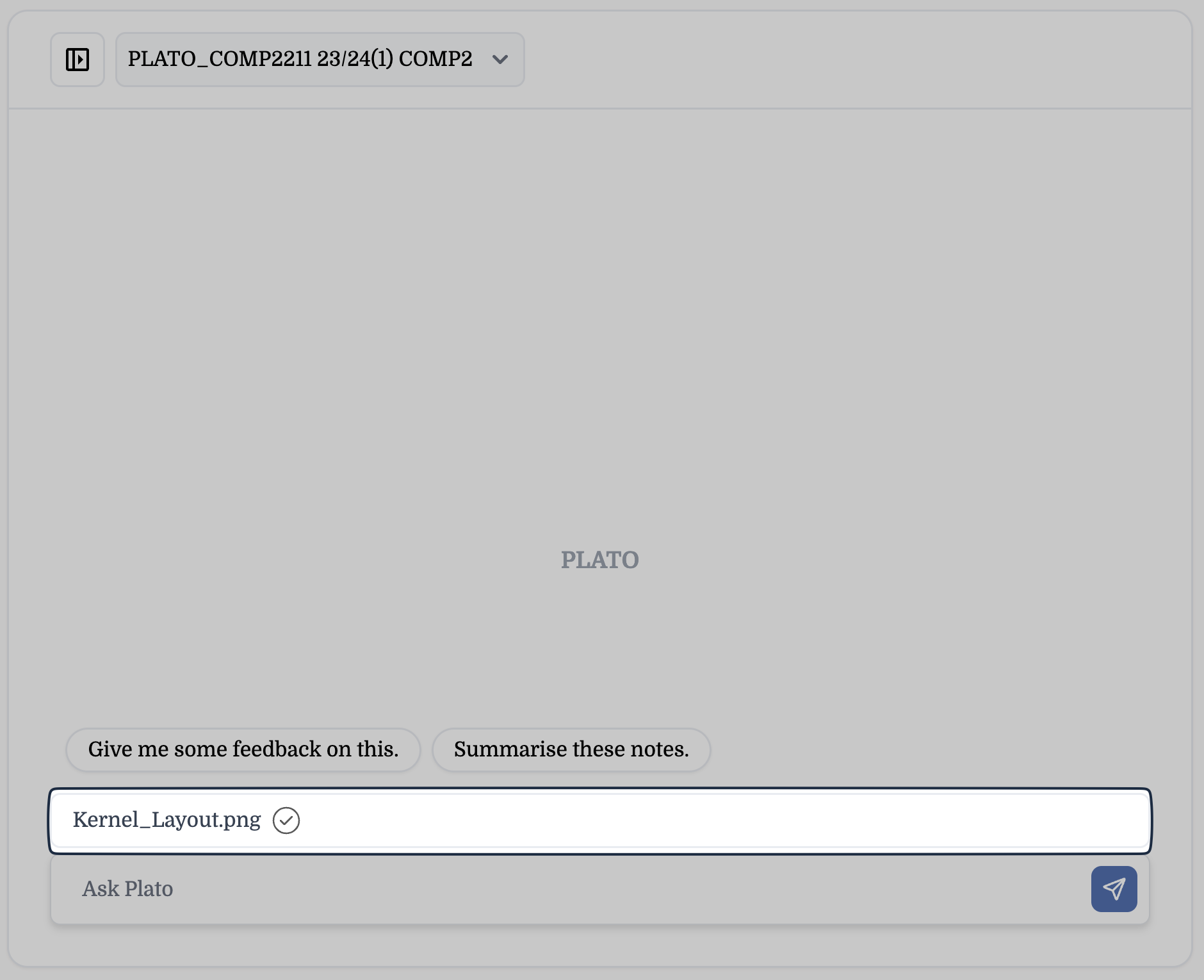
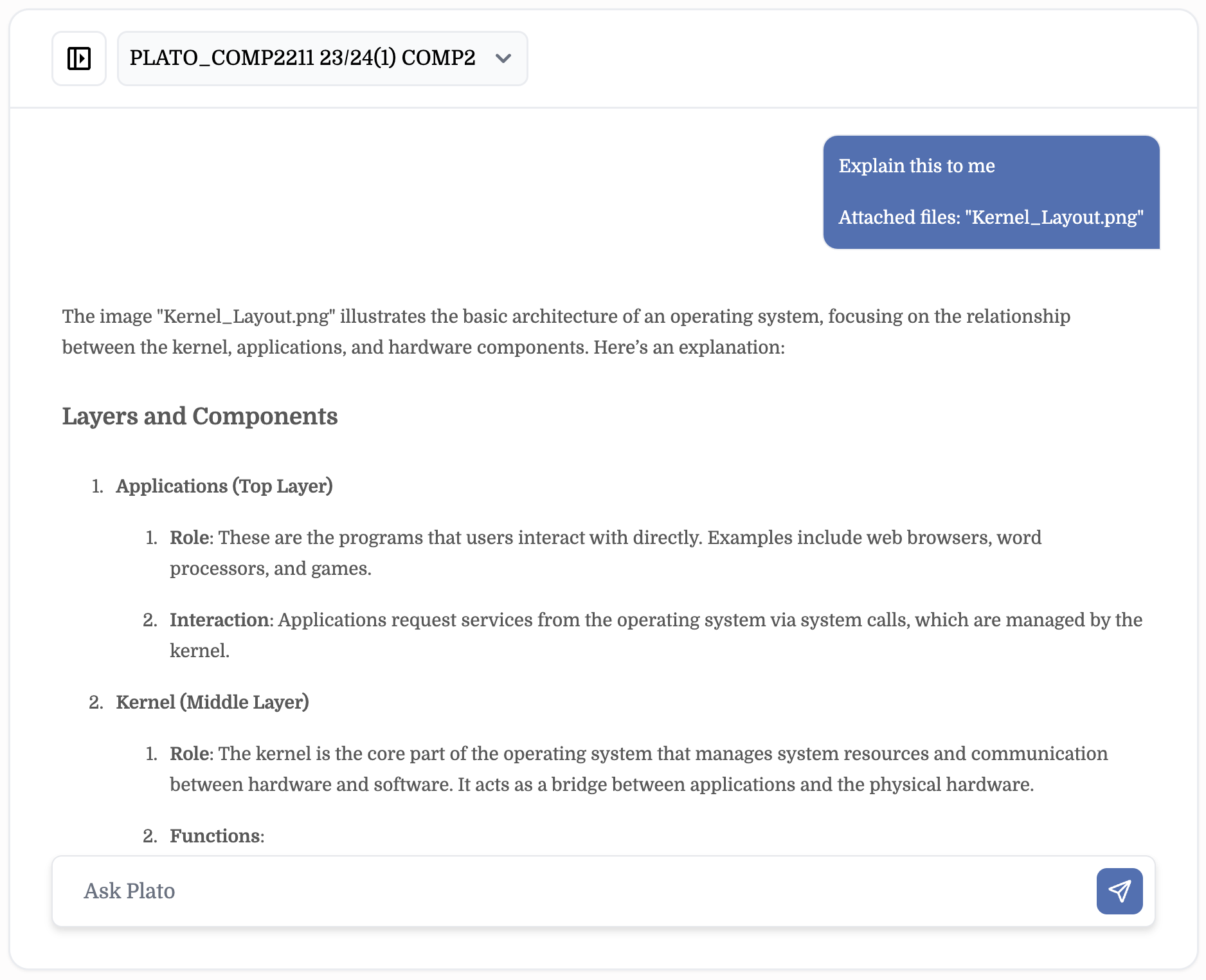
Image Used