Module Context and Content
Why it matters
Module context sits at the heart of how Plato works. Plato is designed to ground answers in module-related teaching materials, which means the selected module and the available content directly affect how relevant an answer will be.
What staff should expect
With the right module context, Plato can answer within the scope of the course, point back to relevant teaching materials and provide more academically aligned support.
Content indexing
Plato integrates with virtual learning environments such as Canvas and Blackboard and automatically indexes module content. This can include published files, pages and other module materials students can already access in the VLE.
Indexing runs automatically, typically on a daily basis, and can also be configured more frequently on a module-by-module basis.
Because Plato only uses published content, it works from the same materials students can already see.
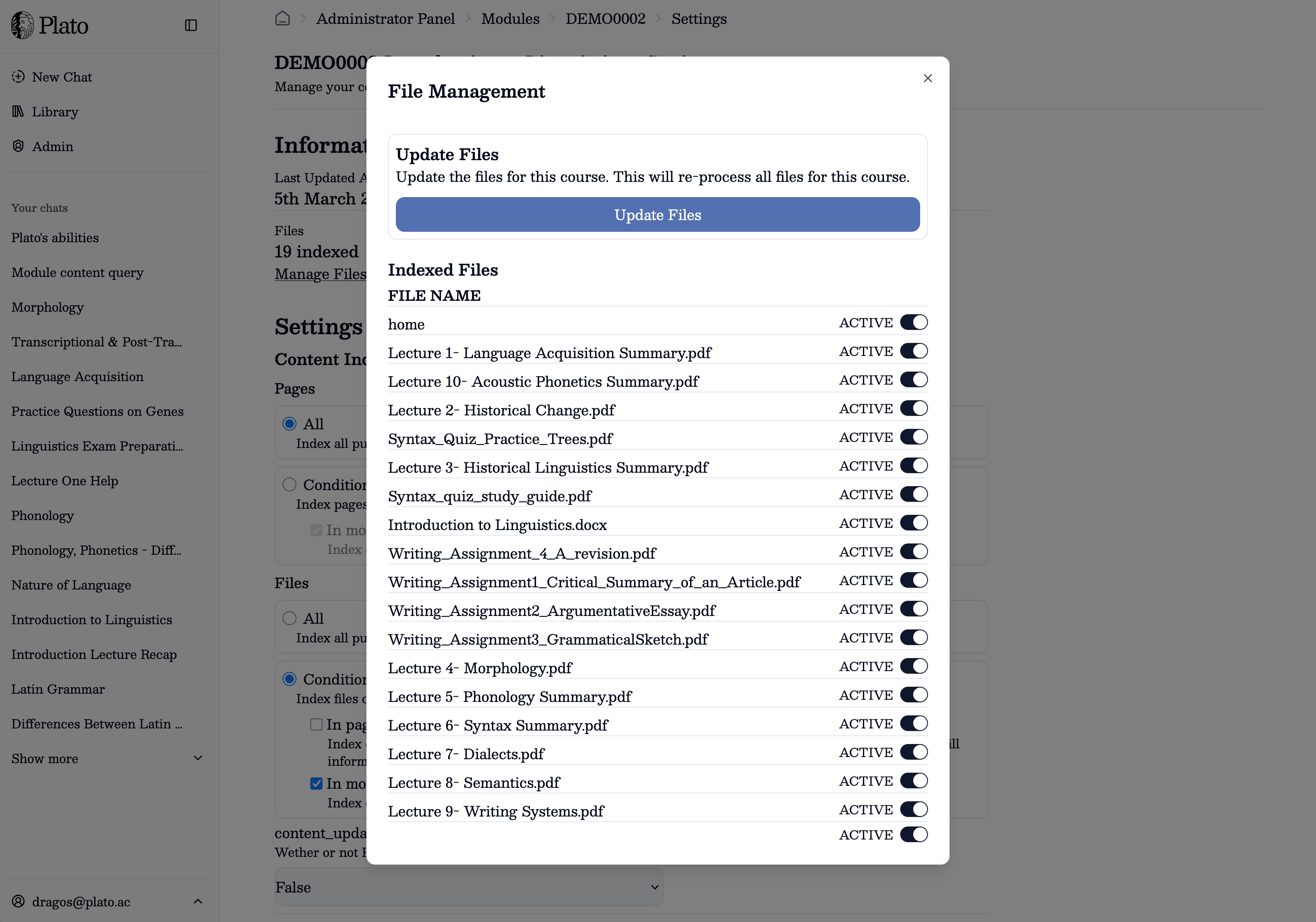
If staff would like to further tailor the content available to Plato, they can restrict specific files in the Plato admin settings for each module. This allows content to remain published on the VLE while being blocked in Plato.
Canvas specific
In Canvas, course content can be structured in a few different ways. Staff can choose to use Canvas Pages, Files or the "Modules" tab. To best use content in your Canvas course, Plato has Canvas-specific settings which need to be set for each module. Not setting these could result in Plato missing out content or using unintended content.
In this context, a "module" refers to the page which can show up in a course's navigation alongside other sections such as "Annoucements", "Discussions", "Pages", "Files" etc.
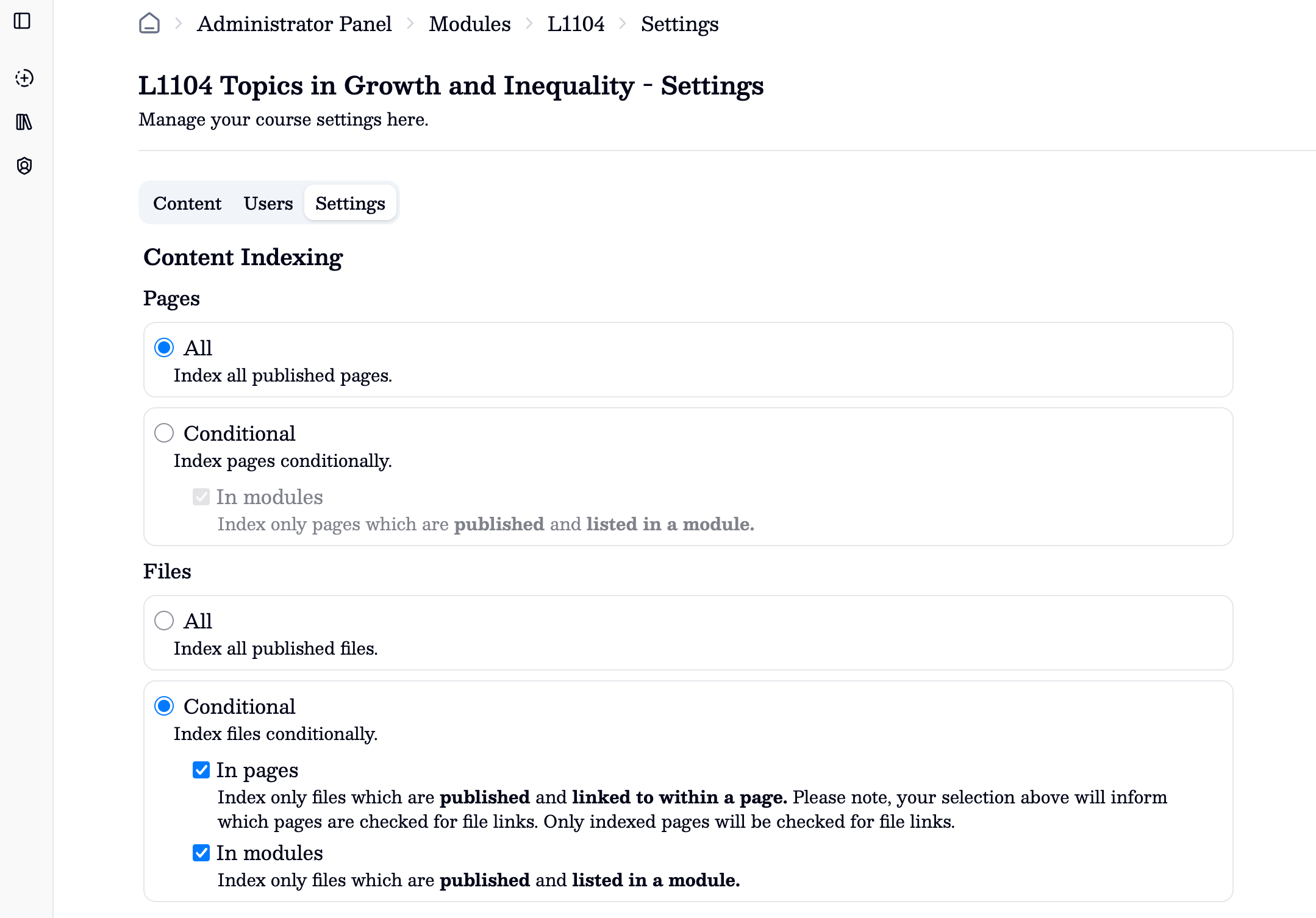
In this settings section, you are able to specify how Pages and Files are indexed. If you are not using the "modules" tab, you can select "All" pages to index all published pages. Otherwise if you use the module area where you list pages, you can select conditional - this will then only index pages which are published and listed in a published module section.
For files, "All" will index all published files in the Files tab - this could include published files which are not listed in a module. "Conditional" will allow you to specify which published files are indexed. "In pages" will index files which are published and linked to within a page. This will check pages which passed the above page section check.