Plato can be configured per module, so each module can behave differently depending on how it is taught and assessed. Settings are managed by staff with access to that module and take effect for students immediately.
What settings can change
Settings can help with:
- controlling whether Plato answers only from your module content or draws on wider knowledge
- keeping specific topics, examples or materials out of Plato's answers
- turning Plato on or off for a cohort, and controlling how often content is refreshed
Plato Access
Determines whether students may ask Plato questions on this module. Disabling access is useful before teaching begins, or if you want to restrict access to Plato during a specific time period like an online exam.
Restricted Mode
In restricted mode Plato will only use module content to answer questions, and will not draw on its wider knowledge or external sources. Where a question falls outside your material, Plato will say so rather than answering from general knowledge.
This is the stricter setting and suits modules where terminology, notation or approach needs to match the taught material exactly. Leaving it off allows Plato to give broader context around your content.
Restricted Items
You are able to specify items, topics or concepts which Plato should avoid answering on. This is free text, so you can give context as well as a rule. For example: "Theories relating specifically to Procter & Gamble and Burberry. Instead use Starbucks as an example."
This is commonly used around assessment content or case studies held back for seminars.
Content Update Interval
Sets the hour interval between content updates, so changes you make in the VLE are picked up automatically. A shorter interval is useful while you are actively adding material; a longer one is usually sufficient once a module is running. Plato also supports manual content updates triggered on the "Content" tab of your module settings which is useful if you want to immediately update your materials after a change in the VLE.
Content Update Paused
Pauses content updates entirely. Content will not refresh again until this is set back to false.
Canvas specific - content indexing
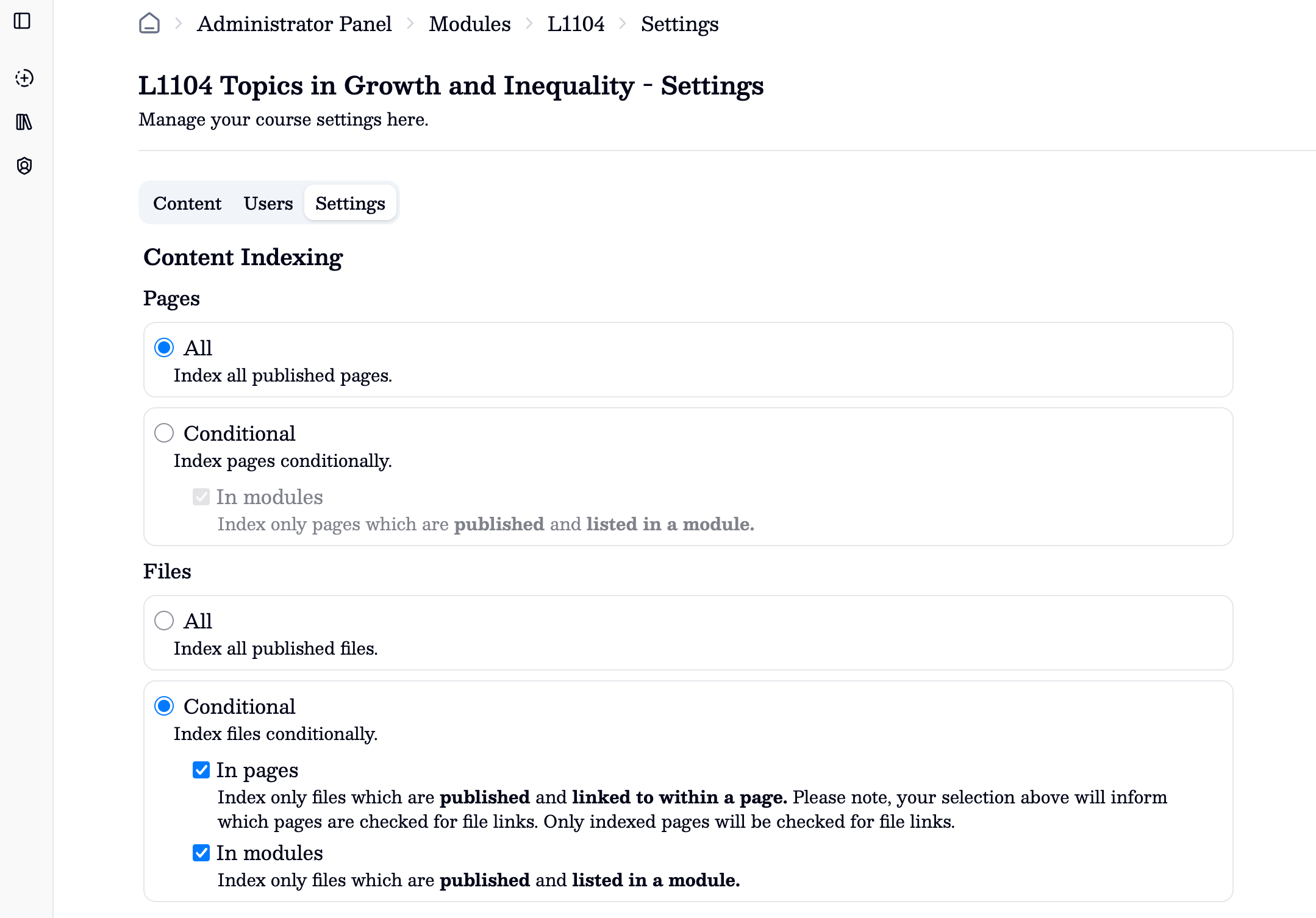
In Canvas, course content can be structured in a few different ways. Staff can choose to use Canvas Pages, Files or the "Modules" tab. To best use content in your Canvas course, Plato has Canvas-specific settings which need to be set for each module. Not setting these could result in Plato missing out content or using unintended content.
In this context, a "module" refers to the page which can show up in a course's navigation alongside other sections such as "Annoucements", "Discussions", "Pages", "Files" etc.
In this settings section, you are able to specify how Pages and Files are indexed. If you are not using the "modules" tab, you can select "All" pages to index all published pages. Otherwise if you use the module area where you list pages, you can select conditional - this will then only index pages which are published and listed in a published module section.
For files, "All" will index all published files in the Files tab - this could include published files which are not listed in a module. "Conditional" will allow you to specify which published files are indexed. "In pages" will index files which are published and linked to within a page. This will check pages which passed the above page section check.